UDN
Search public documentation:
AnimationCompressionDialog
日本語訳
中国翻译
한국어
Interested in the Unreal Engine?
Visit the Unreal Technology site.
Looking for jobs and company info?
Check out the Epic games site.
Questions about support via UDN?
Contact the UDN Staff
中国翻译
한국어
Interested in the Unreal Engine?
Visit the Unreal Technology site.
Looking for jobs and company info?
Check out the Epic games site.
Questions about support via UDN?
Contact the UDN Staff
UE3 Home > Animation > Animation Compression
UE3 Home > Animators > Animation Compression
UE3 Home > Cinematic Artist > Animation Compression
UE3 Home > Animators > Animation Compression
UE3 Home > Cinematic Artist > Animation Compression
Animation Compression
Overview
Skeletal animation sequences can use special algorithms to compress the amount of space they take up in memory. The algorithms and settings for the compression are applied to the animation sequences through the Animation Compression Dialog in the AnimSet Editor. For details about the various compression algorithms, please see the Animation Compression Algorithms page. For a technical guide for programmers to working with animation compression in Unreal Engine 3, please see the Animation Compression Technical Guide.
Animation Compression Dialog Layout
The Animation Compression Dialog contains the following sections:
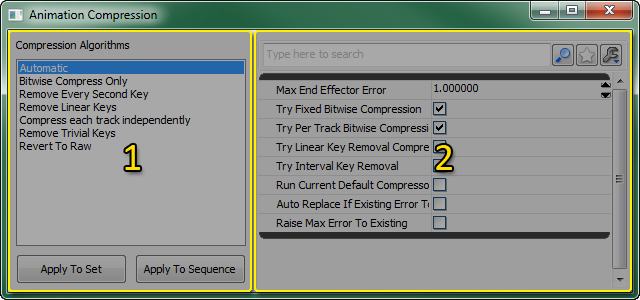
Compression Algorithm List
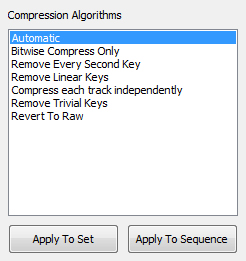 The Compression Algorithm list displays all the available methods of compressing animations. Selecting an algorithm from the list will display the properties associated with that algorithm for fine-tuning.
The buttons located below the list are the following:
The Compression Algorithm list displays all the available methods of compressing animations. Selecting an algorithm from the list will display the properties associated with that algorithm for fine-tuning.
The buttons located below the list are the following:
| Button | Description |
|---|---|
 | Applies the currently selected compression algorithm and settings to the currently selected animation set, and all animation sequences within it. |
 | Applies the compression algorithm and settings to the currently selected animation sequence. |
Compression Settings
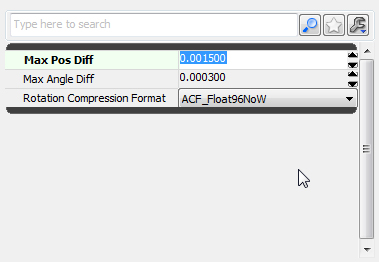
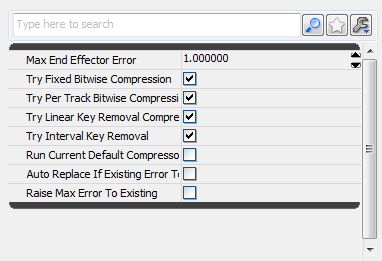 The Compressions Settings display the properties associated with the currently selected compression algorithm. Changes can be made to fine-tune the compression scheme, but any changes made will not be active until applied.
Compressing Animation
Compressing animations within Unreal Engine 3 is extremely simple. These sections cover the process of applying and viewing animation compression.
Opening the Animation Compression Dialog
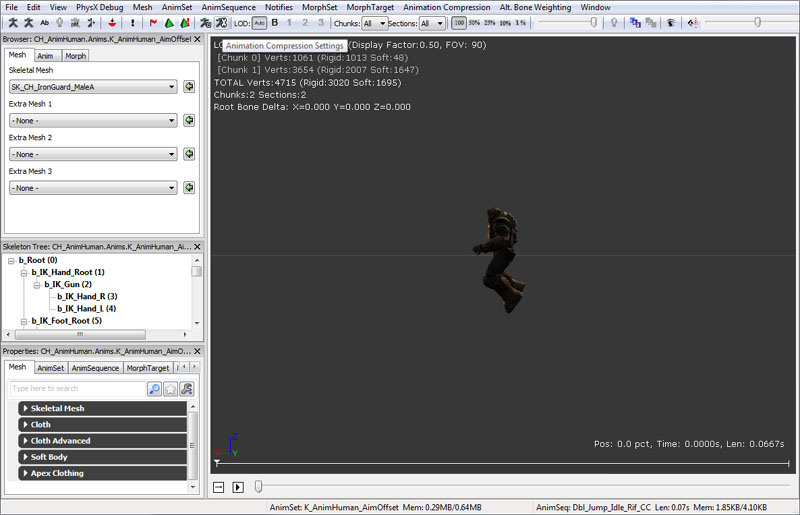
There are two methods of accessing the Animation Compression Dialog inside of the AnimSet Editor:- Through the "Animation Compression" menu

- Via the
 toolbar button, located in the toolbar is pictured below:
Applying Animation Compression
Animation compression settings are stored per sequence and are manipulated with the animation compression dialog. To apply animation compression to a specific set or sequence, first select the set/sequence in the AnimSet Editor.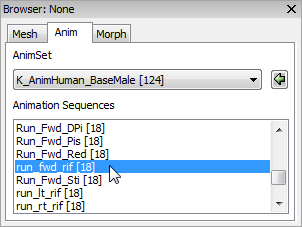 Open the animation compression dialog and select a compression technique from the "Compression Algorithms" list.
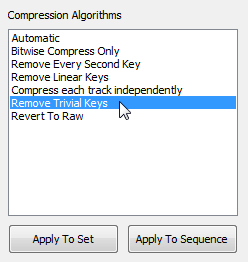 Modify the settings in the Compression Settings as desired.
 Hit the button to apply the technique to the entire AnimSet, or hit the button to apply the technique to the selected animation sequence. You can then preview the mesh in the AnimSet Editor viewport, tweak settings and recompress as necessary.
Viewing Compressed Animation
The resulting animation of a particular animation sequence after being compressed can be previewed in the Preview Pane of the AnimSet Editor. The animation applied to the SkeletalMesh in the Preview Pane is always compressed since animation is compressed on import (as described in AnimationCompression). To compare the compressed animation against the uncompressed data, use the toolbar button to cause a yellow skeleton to appear that is animated with the source animation data.
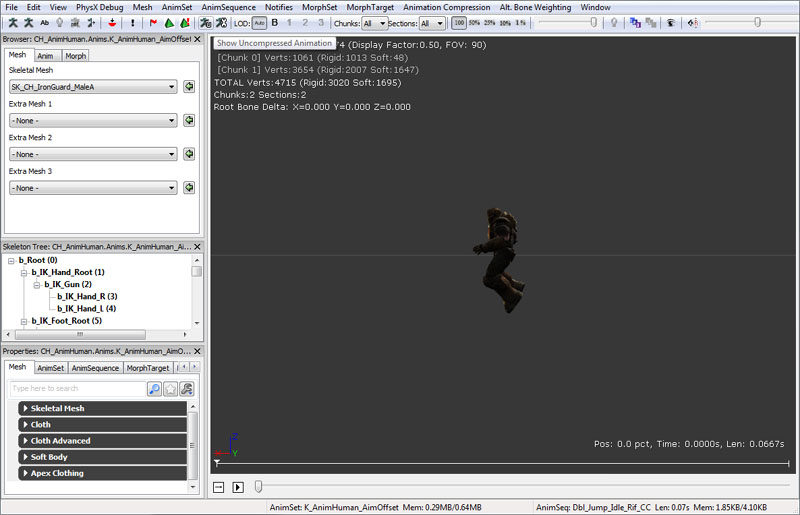 Along the bottom of the AnimSet Editor are memory stats comparing the size of the compressed data vs the raw data for the selected AnimSet and animation sequence.
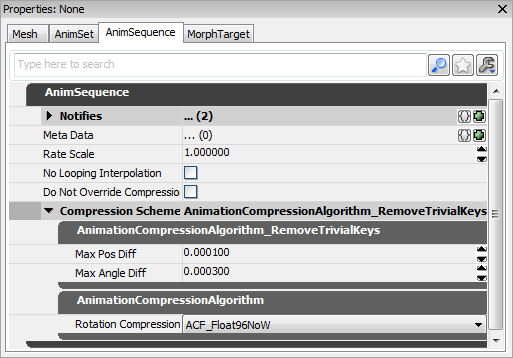
 Each time an animation is compressed, the compression settings are stored with the sequence so that animation can easily be re-compressed. The compression settings currently applied to a sequence can be inspected in the AnimSet Editor by selecting the sequence and opening the AnimSequence property window tab, pictured below: