UDN
Search public documentation
PostProcessEditorUserGuide
Post Process Editor User Guide
Document Summary: Guide to using the Post Process Editor. Document Changelog: Created by Tim Johnson?; updated by Daniel Wright; maintained by Richard Nalezynski- Post Process Editor User Guide
- Introduction
- Using the Post Process Editor
- Post Process Editor Overview
- Working with Effects
- Effects Reference
- PostProcessVolumes
- Controlling Effects through Matinee
- Controlling through Gameplay Script
Introduction
The post process framework allows for artist-configurable post process effects, through groupings of post process elements forming an overall effect. Examples of elements and effects include bloom, depth of field, motion blur, and material effects, which are custom materials run on the final scene image.Using the Post Process Editor
Creating an Effect
A new effect grouping can be added in the generic browser, by creating a Post Process Effect object. Double clicking this object will open the Post Process Editor.Post Process Editor Overview
Editor Layout
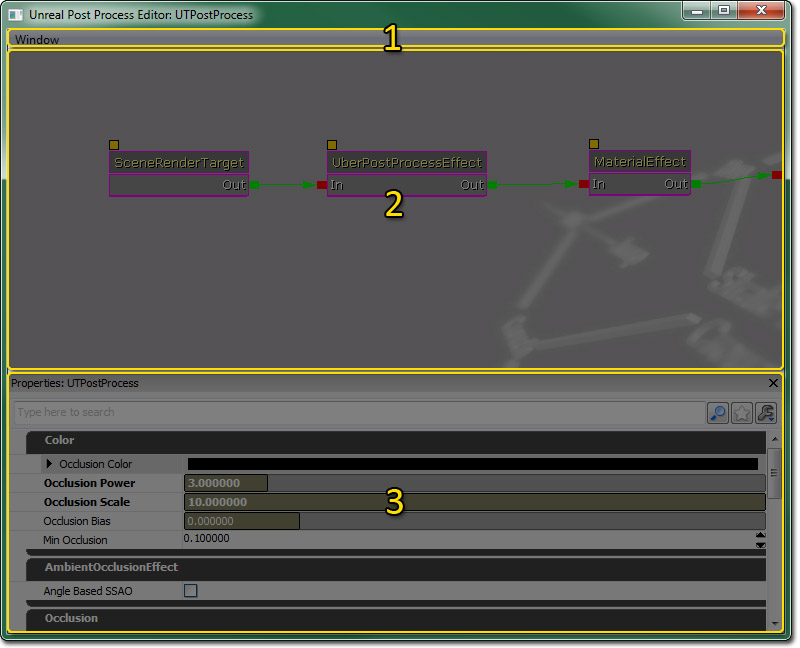
This is the post process editor window. It uses the same interface as many other UnrealEd node-based editors. By default it has one node, the SceneRenderTarget, which is the current rendered scene, with no effects applied. You connect new effects to this node to alter what's displayed on-screen.
Menu Bar
Window
Properties: Shows the Properties Pane.Tool Bar
Post Process Node Graph
This interface displays the post processing chain from right to left.Context Menu
Right-clicking in the editor opens up a context menu that displays a list of nodes which can be added to the graph:| Effect | Description |
| BloomEffect | HDR Blooming effect on bright objects. |
| DOFEffect | Camera depth of field effect with focal planes. |
| DOFAndBloomEffect | An optimized combination of DOF and Bloom. |
| MaterialEffect | User created material. |
| MotionBlurEffect | Blurs the scene based on object velocities. |
| UberPostProcessEffect | Optimized combination of DOF, Bloom and Tone Mapping. |
Properties Pane
Controls
Mouse Controls
Keyboard Controls
Hot Keys
Working with Effects
Defaults
Default post process effects are set through the configuration file option:[Engine.Engine] DefaultPostProcess=SomePackage.SomeEffect
Changing Effects at Runtime
At runtime, the effects can be changed through UnrealScript or native code using thePostProcessManager class.
Effects Reference
Common Settings (PostProcessEffect)
bShowInEditor
The 'bShowInEditor' property is common to all nodes, and allows toggling of the display in the editor viewports as well as being shown in game. This is sometimes useful for realtime visualization, but can get in the way of workflow if left on, such as with motion blur or depth of field.bShowInGame
Controls whether the effect is applied in game. This is often useful when there are a bunch of effects in the post process chain that need to be enabled only during certain actions.bUseWorldSettings
If this is not checked then the post process setting will come from the default values of the effect in the post process chain. If this is checked then the post process settings from the current level's WorldInfo or the current post process volume encompassing the player will override this effect. You can access the WorldInfo post process settings through View->World Properties->WorldInfo->DefaultPostProcessSettings.EffectName
The name for the effect.SceneDPG
The (DPG) Depth Priority Group that the effect resides in. This should be set to SDPG_PostProcess for all the default Post Process effects. However, it may sometimes be useful to change this for some user created material effects.DOFEffect
FalloffExponent
Affects how quickly the blur amount will falloff. An exponent of 1 will cause the falloff to be linear.BlurKernelSize
Size, in pixels, of the kernel that should be used to blur.MaxNearBlurAmount
Upper limit for how much blur should be applied to objects in front of the focus plane.MaxFarBlurAmount
Upper limit for how much blur should be applied to objects behind the focus plane.ModulateBlurColor
A color that is modulated with the blur colorFocusType
Determines how the focus point is calculated. FOCUS_Distance - use distance from the current view. The focus point moves with the current view.FOCUS_Position - use a world space position. The focus point is a fixed point in the world.
FocusInnerRadius
Radius of the focus. The center point of the focus radius is always in focus and the focus amount falls off to full blurryness at the edge of the focus radius depending on the FalloffExponent specified.FocusDistance
Distance to the focus, used when FOCUS_Distance is specified.FocusPosition
World position of the focus, used when FOCUS_Position is specified.DOFAndBloomEffect
BloomScale
Scale applied to bloom color.MotionBlurEffect
MaxVelocity
Maximum velocity amount, which effectively clamps the amount of blur.MotionBlurAmount
Scales the applied blur.CameraRotationThreshold
Minimum angle, in degrees, that the camera must rotate in a single frame before motion blur is disabled.CameraTranslationThreshold
Minimum distance, in world units, that the camera must translate in a single frame before motion blur is disabled.UberPostProcessEffect
These parameters are used to tone map the scene, using the following equations:Color0 = ((InputColor - SceneShadows) / SceneHighLights) ^ SceneMidTones Color1 = Luminance(Color0) OutputColor = Color0 * (1 - SceneDesaturation) + Color1 * SceneDesaturation
SceneShadows
SceneHighlights
SceneMidTones
SceneDesaturation
Specifies how much of the scene color to desaturate. A value of 1.0 specifies full desaturation and the scene will be displayed in grayscale.Material Effect
Material
The material effect takes a material as a parameter, which is rendered over the screen. Typically this material will include a 'SceneTexture' node. This samples the current scene, and can be combined with other material expressions to form complex effects. There is also a 'SceneDepth' expression, which samples the z buffer, for depth based effects. See PostProcessMaterials for more info. Note that you can not use a material with any distortion, but you can mimic this behavior by using a SceneTexture sampler and offseting its UVs. All of the various material blend modes are supported: BLEND_Opaque, BLEND_Masked, BLEND_Translucent, BLEND_Additive, and BLEND_Modulate.AmbientOcclusionEffect
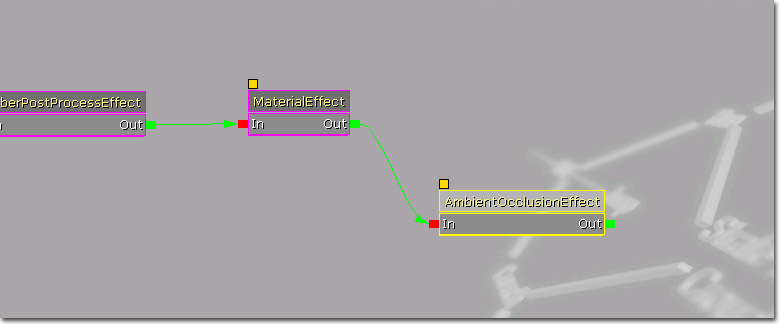
The AmbientOcclusionEffect adds dynamic ambient occlusion to the scene. It operates on scene depth, so only opaque and masked objects in the World DPG will affect it. It doesn't matter where this effect is in the chain, it will always happen before all the other effects. The AmbientOcclusionEffect is considered to be both a post process effect and part of lighting, so both of those showflags affect it.Note that in the editor, the AO History is only enabled when realtime update is on for that viewport. This means that changes to HistoryConvergenceTime will have no effect until you turn realtime update on. Without the AO History the occlusion will be very noisy.
Versions
This effect was first introduced in the Dec 2007 QA Build. Additional settings were added in the Feb 2008 QA Build.Visualization Modes
When tweaking these settings, it is helpful to use the following visualization modes. Some of the settings have very subtle effects and you will need to be viewing the occlusion term by itself to see what they do. Use the 'ToggleAO' console command to toggle ambient occlusion, and 'ToggleScene' to toggle everything but the ambient occlusion.A scene without ambient occlusion (either no AO node or 'toggleao' once to turn it off):
The same scene with ambient occlusion:
The same scene using the ambient occlusion visualization mode ('togglescene' to turn off everything but the AO). Using this mode makes it much easier to see what is going on. Note that you will want to disable whatever bloom effects you have enabled or it will wash out the visualization.
PrimitiveComponent Settings
Ambient Occlusion can be disabled per-primitive with the bAllowAmbientOcclusion flag. See ComponentsReference#PrimitiveComponent.PP Effect Settings
These are the AmbientOcclusionEffect's settings:
Color
After the occlusion factor is calculated it is in the 0-1 range. Some brightness and contrast controls are necessary to only get dark where you want it and not have the effect darken the whole scene.OcclusionColor
The color that will replace scene color where there is a lot of occlusion.OcclusionPower
Power to apply to the calculated occlusion value. Higher powers result in more contrast.OcclusionScale
Scale to apply to the calculated occlusion value. Unfortunately OcclusionPower and OcclusionScale are coupled together and when you change one of them you will need to tweak the other to get the occlusion back into a reasonable range.OcclusionBias
Bias to apply to the calculated occlusion value.MinOcclusion
Minimum occlusion value after all other transforms have been applied. This is useful to keep dark areas from getting 'too dark'.Occlusion
OcclusionRadius
Distance to check around each pixel for occluders, in world units. This setting affects performance. Lower settings are faster.OcclusionAttenuation
Attenuation factor that determines how much to weigh in samples based on distance, larger values result in a faster falloff over distance.OcclusionQuality
Quality of the ambient occlusion effect. This setting affects performance. Low quality gives the best performance and is appropriate for gameplay. Medium quality smooths noise between frames at a slightly higher performance cost. High quality does not downsample and so has much higher frequency noise.OcclusionFadeoutMinDistance
Distance at which to start fading out the occlusion factor, in world units. This is useful for hiding distant artifacts on skyboxes.OcclusionFadeoutMaxDistance
Distance at which the occlusion factor should be fully faded, in world units.Occlusion
HaloDistanceThreshold
Distance in front of a pixel that an occluder must be to be considered a different object, in world units. This threshold is used to identify halo regions around nearby objects, for example a first person weapon.HaloDistanceScale
Scale factor to increase HaloDistanceThresholdfor distant pixels. A value of .1 would result in HaloDistanceThresholdbeing 1 unit larger at a distance of 10 world units.HaloOcclusion
Occlusion factor to assign to samples determined to be contributing to a halo. 0 would result in full occlusion for that sample, increasing values map to quadratically decreasing occlusion values.Filter
Filtering is done on the occlusion values to reduce noise. These are the filter parameters.EdgeDistanceThreshold
Difference in depth that two pixels must be to be considered an edge, and therefore not blurred across, in world units.EdgeDistanceScale
Scale factor to increase EdgeDistanceThreshold for distant pixels. A value of .001 would result in EdgeDistanceThreshold being 1 unit larger at a distance of 1000 world units.FilterDistanceScale
Distance in world units which should map to the kernel size in screen space. This is useful to reduce filter kernel size for distant pixels and keep detail, at the cost of leaving more noise in the result.FilterSize
Size of the blur filter, in pixels. This setting affects performance. Larger sizes reduce the performance of the effect.History
The medium and high quality versions of this effect make use of a history buffer, which stores a running history of the occlusion value. This is used to smooth out the results in between frames, thereby reducing noise.HistoryConvergenceTime
Time in which the occlusion history should approximately converge. Longer times (.5s) allow more smoothing between frames and less noise but history streaking is more noticeable.PostProcessVolumes
To create a PostProcessVolume, move the brush where you want the volume to be and right click on the 'Add Volume' button, then select PostProcessVolume. Now move the brush away and you will see the volume's outline. Bring up the properties. Most of the properties have already been covered, but there are a few unique ones: Note that your post process effect must have the bUseWorldSettings flag set to True in order to be affected by a post process volume. You will only see the effects of each of the post process volumes' settings when your pawn is inside one of the volumes. The deepest volume within a hierarchy of intersecting post process volumes will be the one that is used.Interpolation Duration
Bloom_InterpolationDuration, DOF_InterpolationDuration, MotionBlur_InterpolationDuration and Scene_InterpolationDuration all control the amount of time that will be used to interpolate between the current settings and the volume's settings when a volume is entered.Controlling Effects through Matinee
To get control over the postprocess settings in matinee, you need to first create a group with the camera you want to control. Now you can add a new float or vector Param Track and get control of post process settings in Matinee. See the Matinee User Guide page for more details.Controlling through Gameplay Script
Often it is necessary to change certain post process effects while the game is running based on some gameplay criteria. For example, in Gears of War the post process settings were changed whenver the in-game pause menu came up so that the screen could be blurred and to give the scene a more menacing red tone. By using theULocalPlayer.bOverridePostProcessSettings property you can override what post process values are currently being used for the player. Then, the player's FCurrentPostProcessVolumeInfo CurrentPPInfo struct gets filled in with the new desired values and the interpolation times to transition to these values.