UDN
Search public documentation:
UsingArchetypes
日本語訳
中国翻译
한국어
Interested in the Unreal Engine?
Visit the Unreal Technology site.
Looking for jobs and company info?
Check out the Epic games site.
Questions about support via UDN?
Contact the UDN Staff
中国翻译
한국어
Interested in the Unreal Engine?
Visit the Unreal Technology site.
Looking for jobs and company info?
Check out the Epic games site.
Questions about support via UDN?
Contact the UDN Staff
Using Archetypes
Overview
Archetypes allow content developers to take a snapshot of an existing Object (including property values, components, object references), and save that snapshot as a placeable content resource or as a template which is used in Unrealscript. Archetypes are stored in normal Unreal package files which are managed by content developers, and allow content developers to place "instances" of actor based archetypes in maps and sequences without requiring any programmers. An object based archetype still allows content developers to reference other content and properties, but they will not be placeable in Unreal Editor. If a content developer changes the default value of a property in an archetype, that value is automatically propagated to all instances of that archetype in existing levels and content except those instances which have had that property value customized. Changes to Archetype properties are propagated immediately to instances in the currently open level, and propagated to instances in other packages the next time those packages are loaded. You can also create an archetype based on an actor which is itself an instance of another archetype. In this way, you can create complex hierarchies of archetypes, where each archetype "child" inherits the default values from its "parent" Archetype.
Creating An actor based archetype
Actor based archetype can be created in two ways. Either placing the placeable actor in the level and then archetyping it, or archetyping from the Actor Classes tab within the Content Browser.
Creating an archetype from an actor within the level
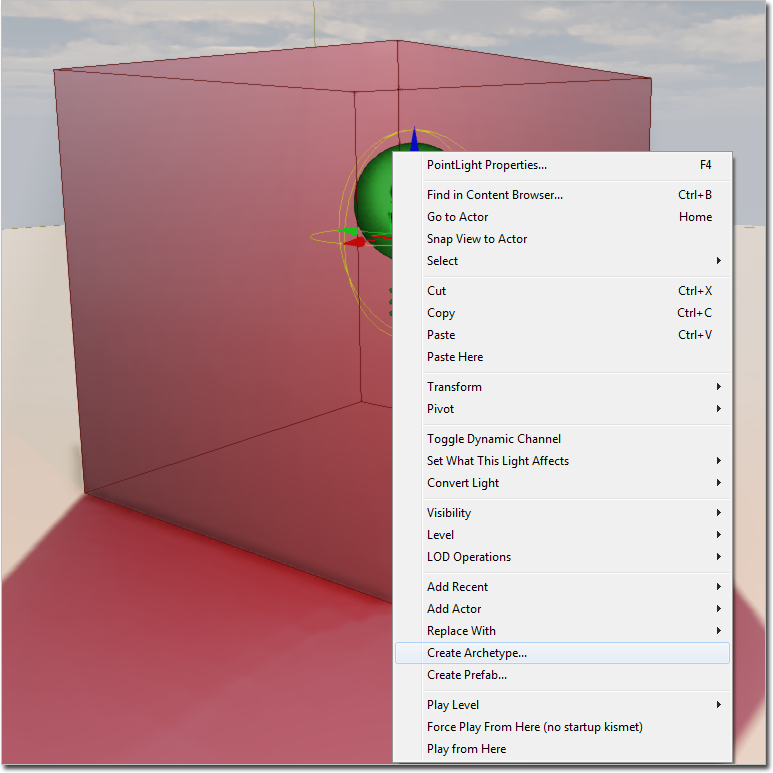
To create an archetype from an actor within the level, select the actor that you would like to base the archetype from.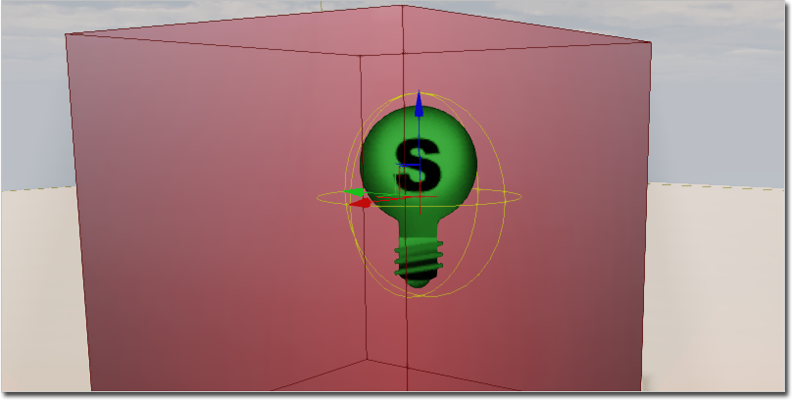 Right click the actor and select Create Archetype.
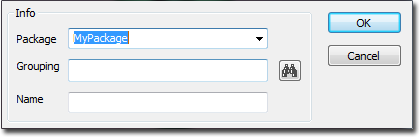
 You'll be presented a dialog for choosing the location for your new archetype resource. Type in the desired values for the package, name, and group [optional] fields, then click OK.
Creating an archetype from the Actor Classes tab within the Content Browser
To create an archetype from the Actor Classes tab within the Content Browser, first open up the Content browser.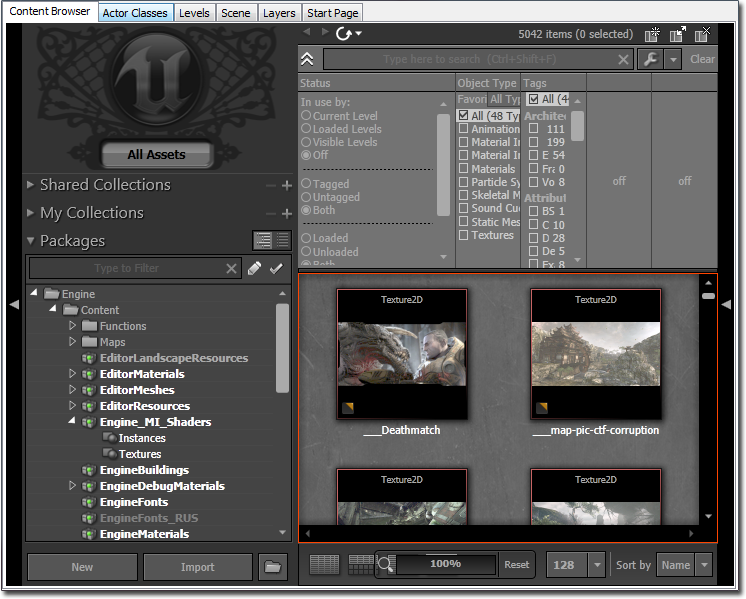 Switch to the Actor Classes tab.
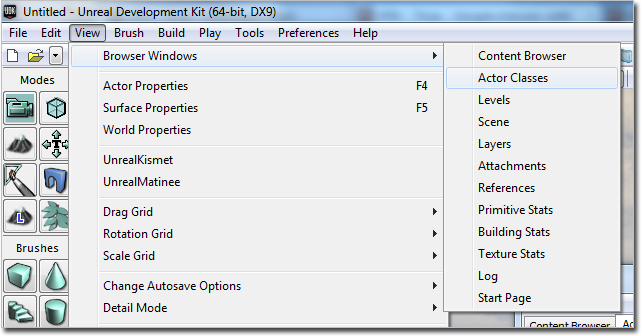
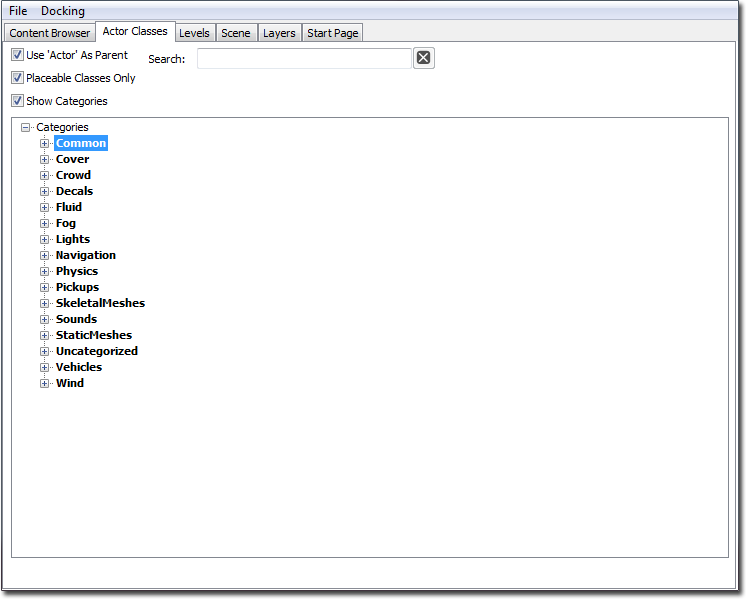 If you do not see the Actor Classes tab, you can also access it from the Views menu in Unreal Editor.
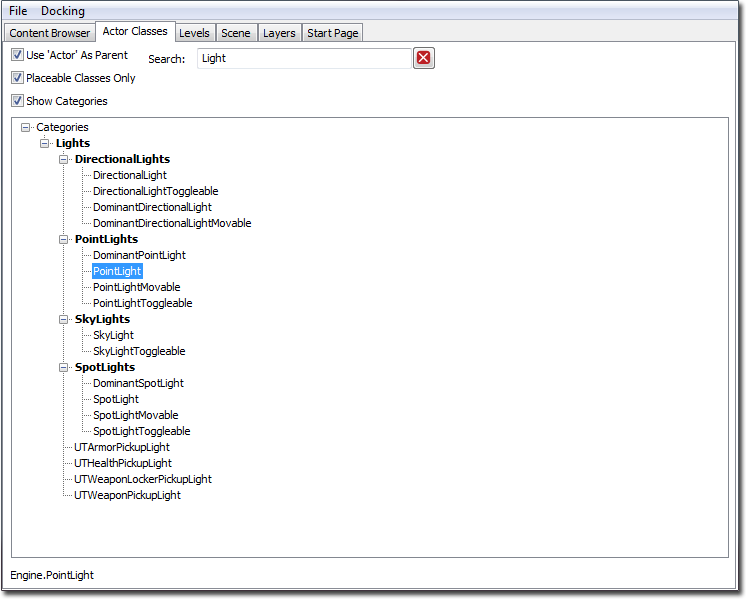
 Find and select the actor class you wish to archetype.
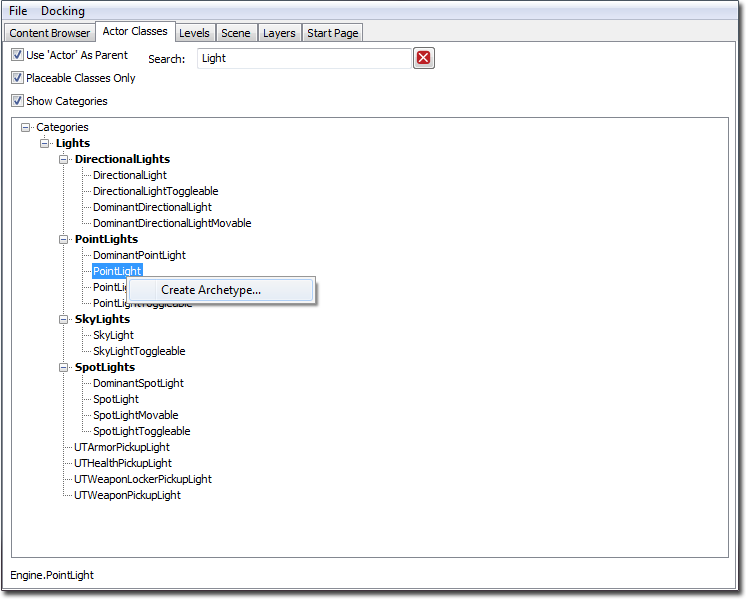
 Right click and select Create Archetype.
 You'll be presented a dialog for choosing the location for your new archetype resource. Type in the desired values for the package, name, and group [optional] fields, then click OK.
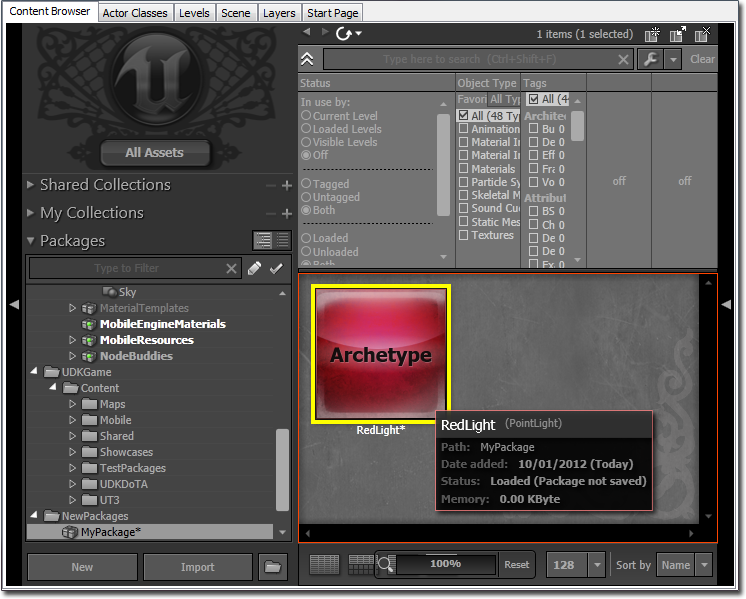
The new archetype resource will now be visible in the Content Browser, located within the package you specified when the archetype was created. In the Content Browser resource tree, click the package which contains your new archetype. In the resource preview window, you should see a box with the word "Archetype", which represents the Archetype you created.
You'll be presented a dialog for choosing the location for your new archetype resource. Type in the desired values for the package, name, and group [optional] fields, then click OK.
The new archetype resource will now be visible in the Content Browser, located within the package you specified when the archetype was created. In the Content Browser resource tree, click the package which contains your new archetype. In the resource preview window, you should see a box with the word "Archetype", which represents the Archetype you created.
Create an object based archetype
Creating an object based archetype is done in the same manner as creating actor based archetypes from the Actor Classes tab within the Content Browser. First, open up the Content Browser.
Switch to the Actor Classes tab.
If you do not see the Actor Classes tab, you can also access it from the Views menu in Unreal Editor.
Find and select the object class you wish to archetype. You may need to turn off filters such as "Use 'Actor' As Parent".
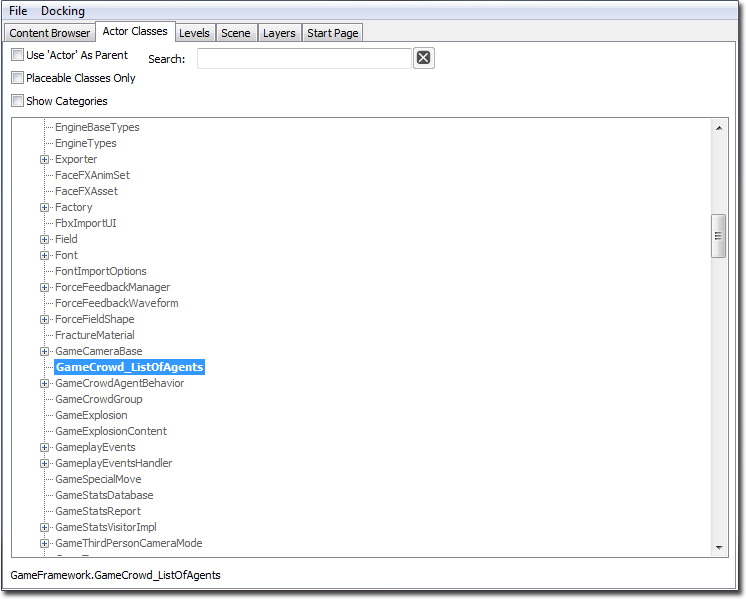 Right click and select Create Archetype.
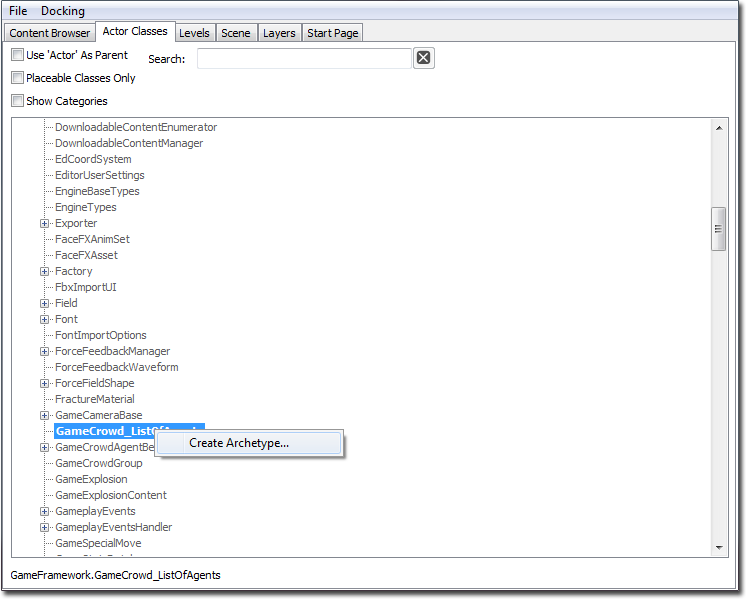 You'll be presented a dialog for choosing the location for your new archetype resource. Type in the desired values for the package, name, and group [optional] fields, then click OK.
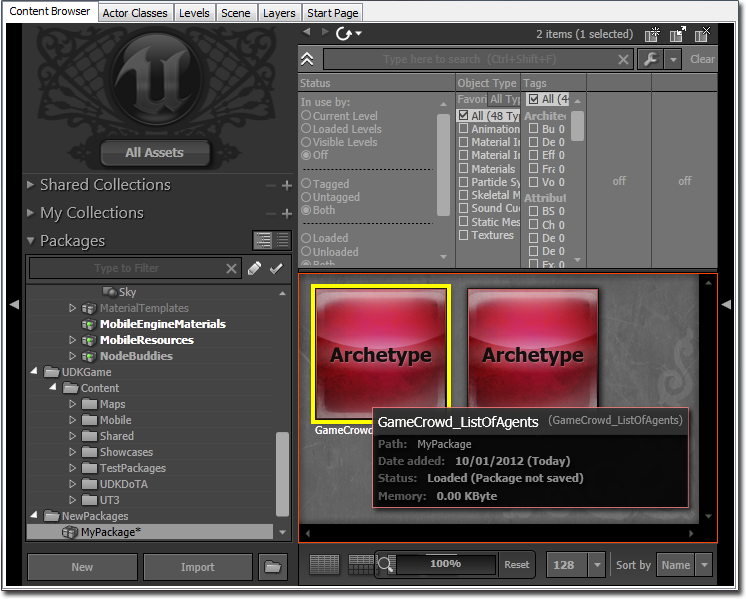
The new archetype resource will now be visible in the Content Browser, located within the package you specified when the archetype was created. In the Content Browser resource tree, click the package which contains your new archetype. In the resource preview window, you should see a box with the word "Archetype", which represents the Archetype you created.
You'll be presented a dialog for choosing the location for your new archetype resource. Type in the desired values for the package, name, and group [optional] fields, then click OK.
The new archetype resource will now be visible in the Content Browser, located within the package you specified when the archetype was created. In the Content Browser resource tree, click the package which contains your new archetype. In the resource preview window, you should see a box with the word "Archetype", which represents the Archetype you created.
Modifying archetype properties
Property values for archetypes are edited using a standard property editor window. To open a property editor window for an archetype resource, locate the archetype resource thumbnail in the Content Browser by selecting the package which contains the archetype, then select the archetype resource thumbnail corresponding to the archetype you wish to modify. Either double-click the thumbnail, or right-click it and select Properties.... A property window for the archetype resource will be displayed. Any changes made to the archetype's property values will be propagated immediately to any existing actors which are instances of that archetype, as well as any archetypes, which are currently loaded, which are based on that archetype ("child" archetypes).
Placing actor based archetypes in the level
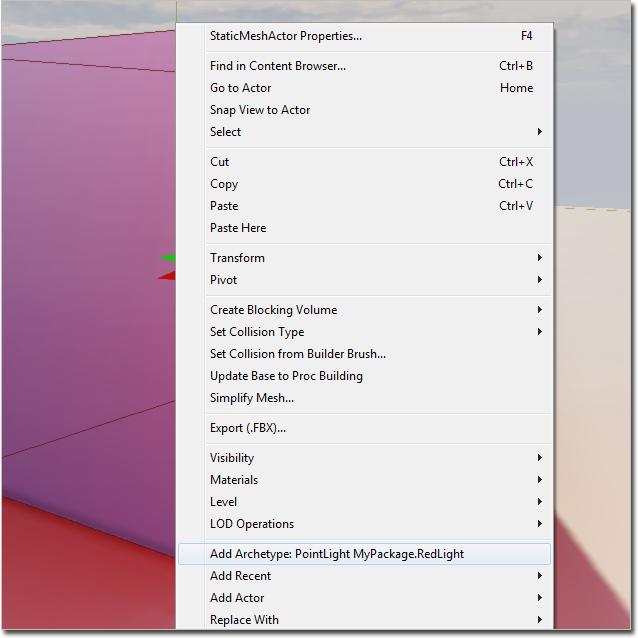
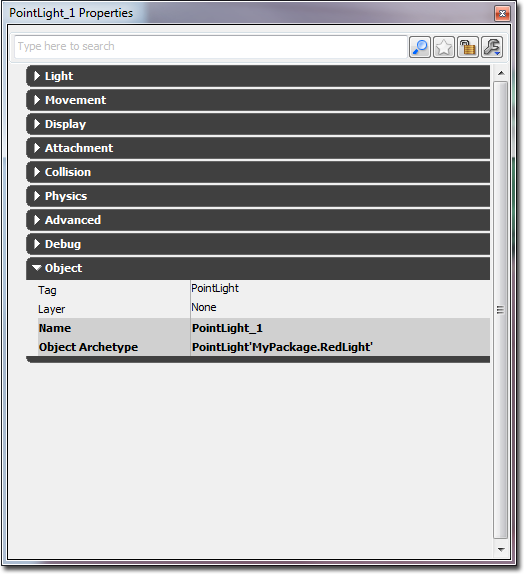
To place instance of an archetype resource, select the archetype resource thumbnail in the Content Browser and right-click in one of the level editing view ports to bring up the context menu. Mouse over the Add Actor item to open the Actor placement sub menu. Select the Add Archetype: {ArchetypeName} option to place an instance of the selected archetype in the level. You can verify that this actor is indeed linked to the archetype you selected by opening the property editor window for the actor you just placed, and expanding the Object category. The value for the ObjectArchetype property should be the archetype resource you used to place the actor. This indicates that when the actor is loaded, it will automatically inherit all property value defaults from the archetype resource specified.
 You can use the ObjectArchetype property to determine which archetype (if any) an actor is using. If the actor is not linked to an archetype, the value for ObjectArchetype will point to the actor's class default object, which has always has a name in the format Default__{ActorClass} (for example, Default__DirectionalLight).
The following image shows that DirectionalLight_0 is an instance of the ExampleArchetypePackage.LightArchetype archetype resource:
You can use the ObjectArchetype property to determine which archetype (if any) an actor is using. If the actor is not linked to an archetype, the value for ObjectArchetype will point to the actor's class default object, which has always has a name in the format Default__{ActorClass} (for example, Default__DirectionalLight).
The following image shows that DirectionalLight_0 is an instance of the ExampleArchetypePackage.LightArchetype archetype resource:
Updating actor based archetypes from instances from within the level
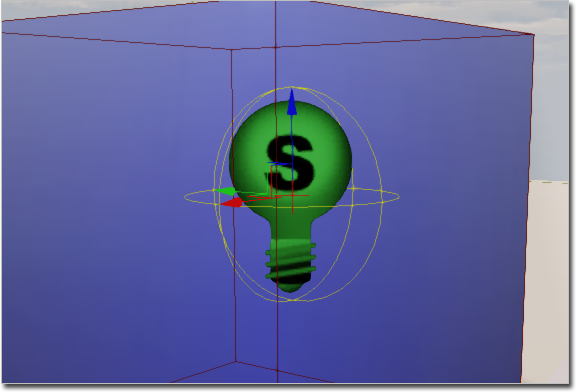
It is often easier to modify the archetyped instance within the level to achieve the exact look or properties that is desired. Instead of manually checking and copying the properties back over to the packaged archetype, you can simply ask the instance to update the archetype that the instance is templated from. To do this, first select the archetyped instance within the level.
 Right click and select Update Archetype from this instance.
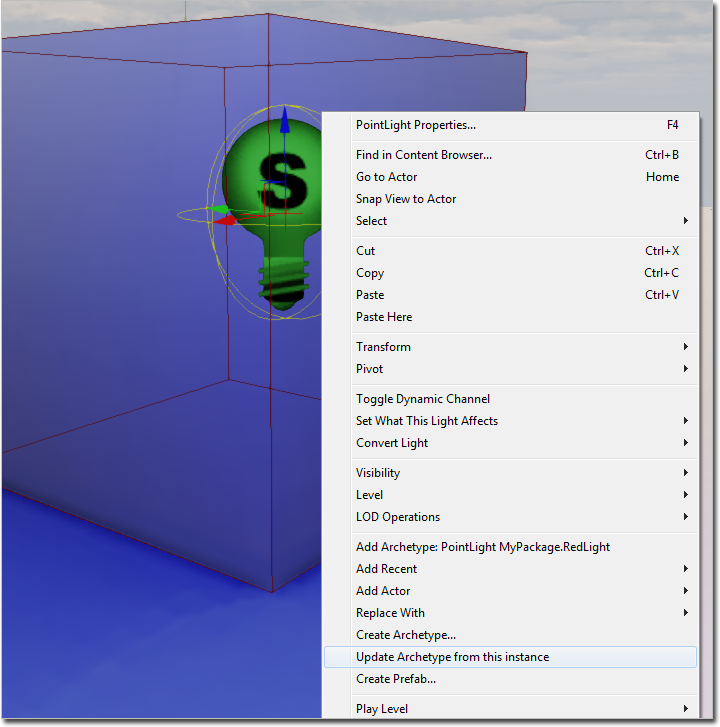 From there the archetype is updated and all other instances should have updated themselves as well.
Archetypes Technical Guide
For a technical description of the way that Object Archetypes in UE3 work behind the scenes, see the Archetypes Technical Guide page.
