UDN
Search public documentation

CollisionReference
Licensees can log in.

Red links require licensee log in.

Interested in the Unreal engine?
Check out the licensing page.

Questions about UDN itself?
Contact the UDN Staff

Collision Reference

Document Summary: A reference and guide to working with collision in the Unreal Engine.

Document Changelog: Ported and updated by James Golding. Maintained by Richard Nalezynski.

Collision Overview

As well as making your Unreal level look amazing, it is worth spending some time on the collision for objects in your level.

There are two types of collision performed: Unreal collision and physics collision for rigid bodies (based the Novodex PhysX).

Collision with the level BSP and terrain should work fine without much tweaking. Collision with static meshes, however, can require some optimization, simply because of the large number of triangles involved. The main job here is using simpler shapes for collision than for graphics. There are 2 reasons for doing this:

  • Faster. With the number of triangles now in a level, using just the graphics triangles for collision can get really slow.
  • Smoother. It can be really annoying to get snagged on some small graphical detail in the middle of a firefight!

Unreal Collision

Actor Properties

There are a number of Actor properties found under the Collision section for a given Actor.

bCollideComplex During Actor movement, ignore simplified collision (collision model) on this actor, and collide per-poly.
BlockRigidBody whether objects using physics engine (PHYS_RigidBody) should collide with this actor.
bNoEncroachCheck an optimization which turns off 'encroachment' checking when this actor is moved. Enabling this speeds up the game, but the actor will not be able to touch triggers, push players or enter/exit volumes.
bPathColliding Whether this actor can block paths during AI path building in the editor.
CollisionComponent Pointer to the component used for movement of this actor. If using PHYS_Walking etc, the AABB of this component will be swept against the level. If using PHYS_RigidBody, the shape/physics of this component are used.
CollisionType This is a method of exposing several collision settings to level designers in a simple way. Changing this value in the editor will set the low-level flags CollideActors, BlockActors, BlockNonZeroExtent, BlockZeroExtent and BlockRigidBody on the Actor and its CollisionComponent.

Collision Flags

There are a number of flags that control how Unreal will do collision with objects you place in the level. Sometimes a flag appears both in the Actor properties and the Component properties. In this case the Actor one acts as an override - both must be true for it to take effect.

CollideActors This must be true for the object to be considered at all for unreal collision detection.
BlockActors This indicates if the object should block a player from moving. A trigger for example would have CollideActors set to true but BlockActors set to false.
BlockZeroExtent A zero-extent trace is a regular line check, commonly used for things like weapons. This flag must be true for an object to be considered when doing this type of check.
BlockNonZeroExtent A non-zero-extent trace is a swept-box (Axis-Aligned Bounding Box, or AABB) check, used for things like player movement. If this is false, this object will be ignored for this type of check.

Collision Types

There are two main tools for tweaking collision in your level, Blocking Volumes and Collision Models. Both must be closed meshes.

Blocking Volumes

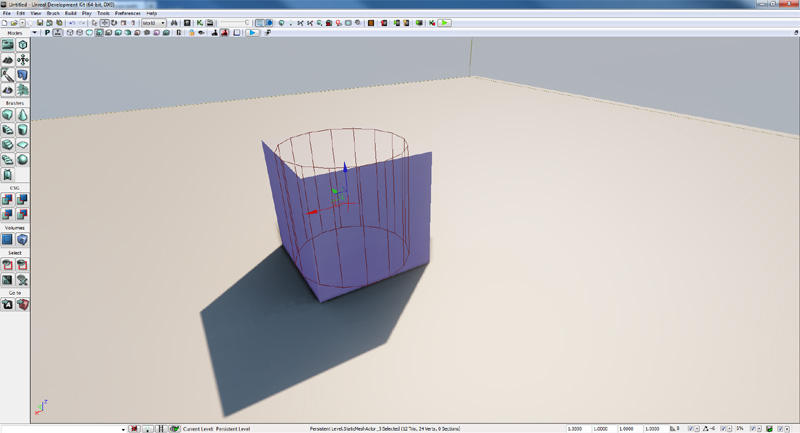
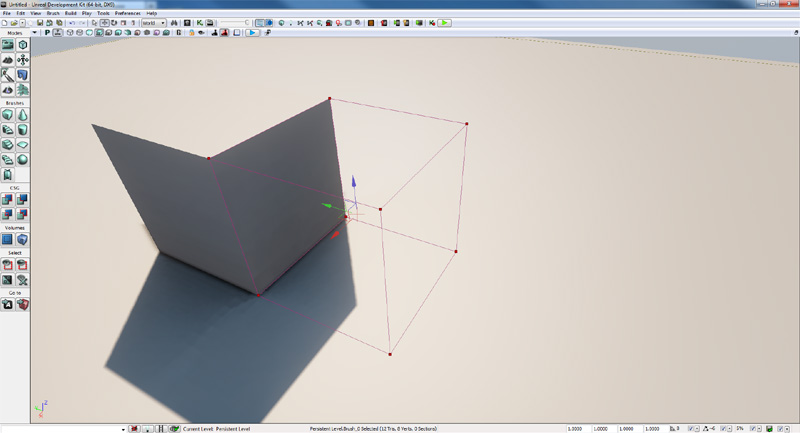
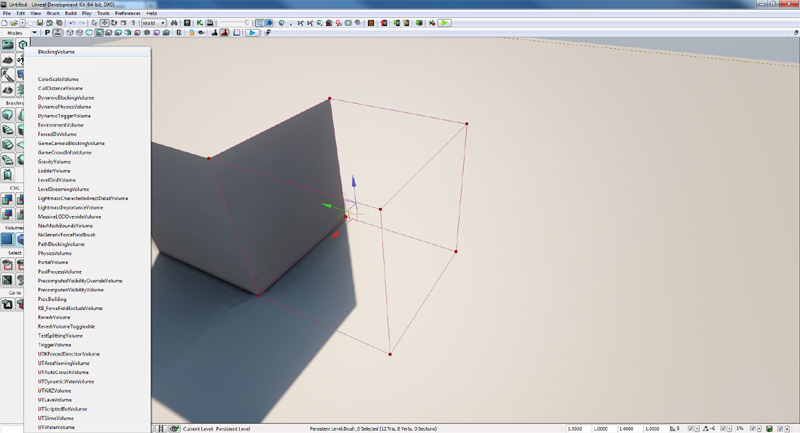
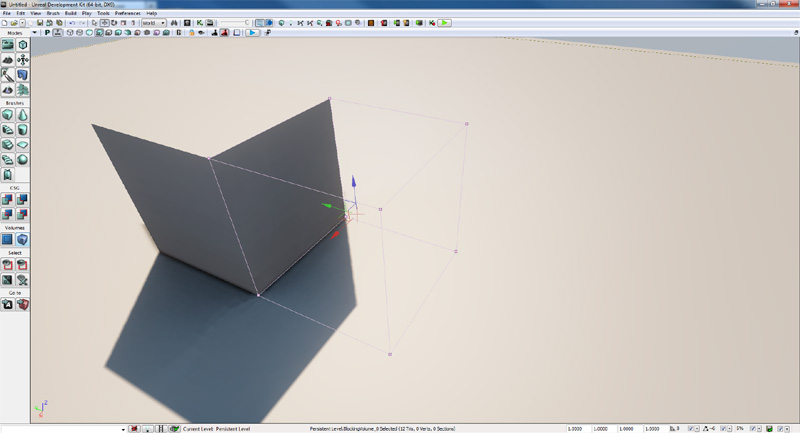
These are invisible Actors which the player will collide against in game. First make the builder brush the correct shape, then right click on the Volume button in the editor and select BlockingVolume from the list. These can also be useful for preventing players getting to certain areas of the level (e.g. over walls).

Collision Models

Collision Models are stored as part of a static mesh, in the package file. Every time you place a static mesh, it will collide in the same manner. Because collision models are part of the static mesh, they are instanced in the same way as static mesh graphics, so are more efficient memory-wise than blocking volumes.

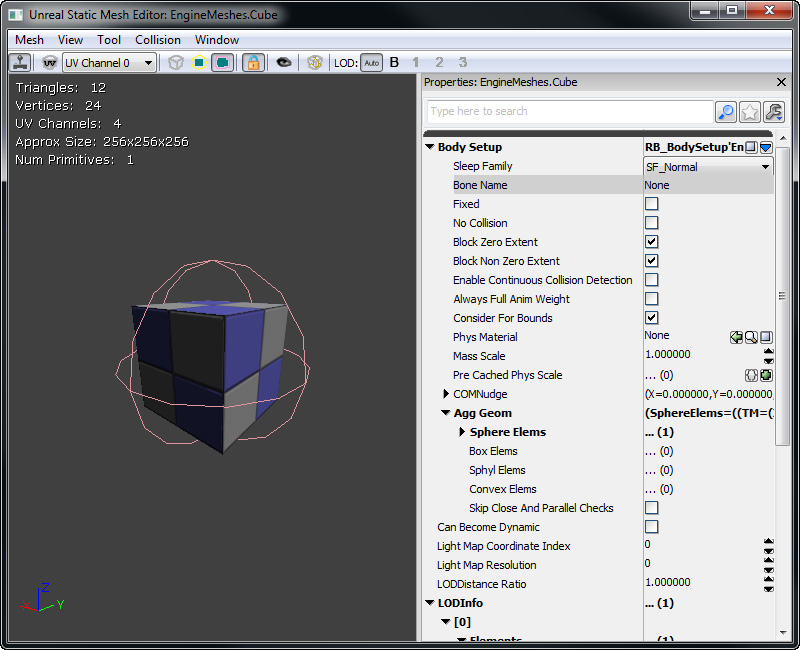
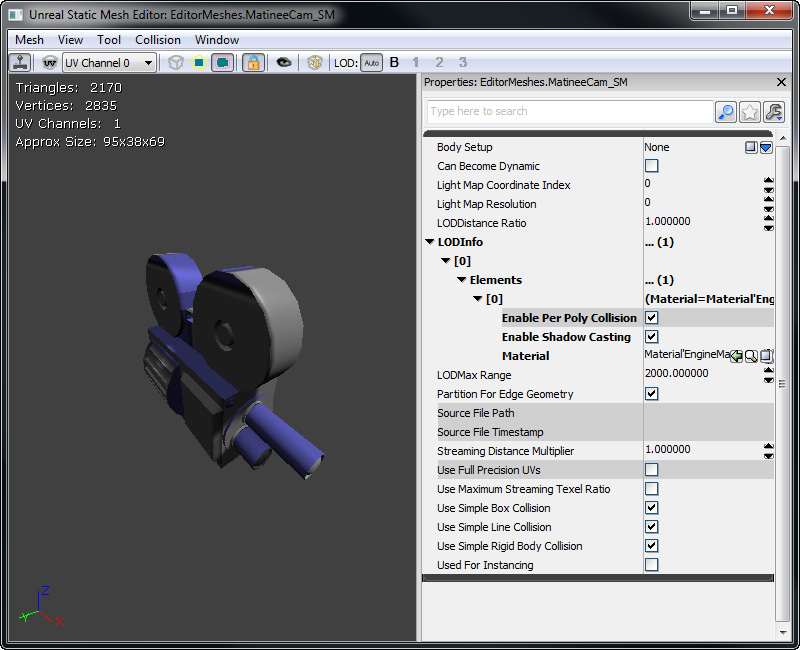
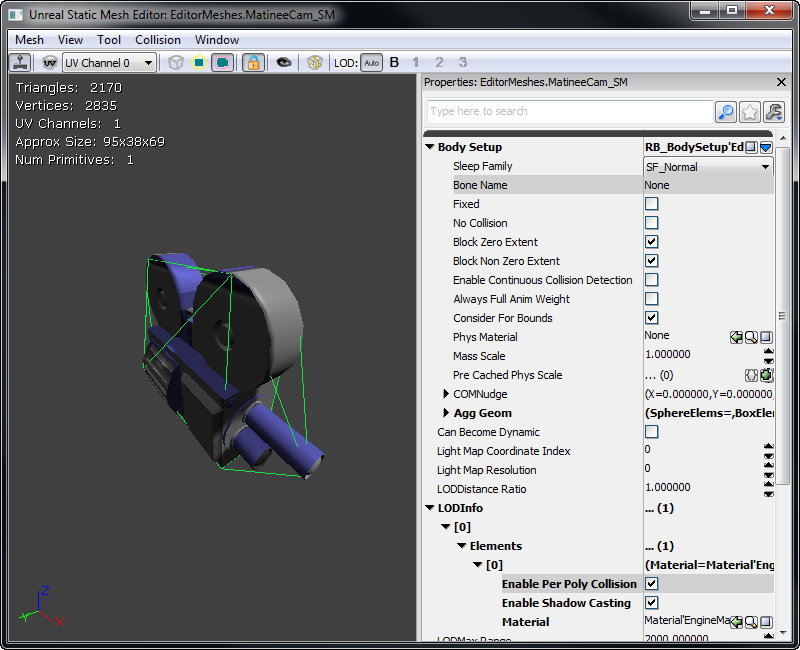
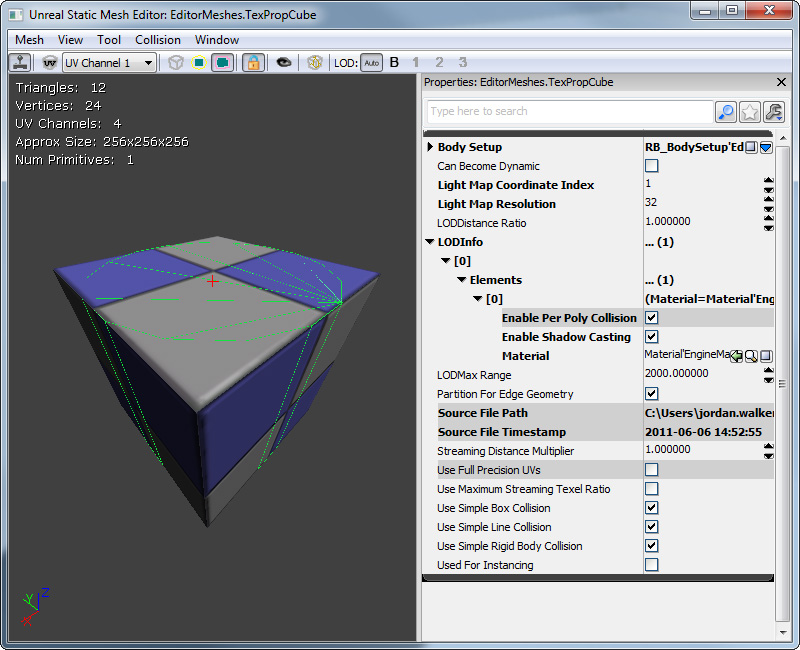
In the static mesh browser you can change a few properties of how the collision model is used:

Collision Type Default Description
UseSimpleRigidBodyCollision TRUE If this is TRUE and a collision model is present, the collision model will be turned into a set of convex hulls and used for calculate the collision of full physics objects (e.g. vehicles or ragdolls) against this object. If UseSimpleRigidBodyCollision is TRUE, and there is no collision model, rigid bodies will not collide with this object. If you set UseSimpleRigidBodyCollision to FALSE, the physics engine will collide with the graphics triangles; only use this option if the graphics triangles are fairly large. See the Collision For Rigid Bodies section below for more details.
UseSimpleBoxCollision TRUE If this is TRUE, the collision model (if present) will be used for non-zero extent line checks. This includes things like player movement, but not weapon fire. No per triangle collision will be used if this is TRUE and there is a collision model. If you set UseSimpleBoxCollision to FALSE, per-triangle collision will be used based on the material. You can turn off collision for a material by pulling down the Materials array and setting EnableCollision to FALSE. There will be no collision if you set UseSimpleBoxCollision to TRUE when you do not have a collision model.
UseSimpleLineCollision TRUE If this is TRUE, collision model (if present) will be used for zero extent line checks. This includes most weapon fire, corona traces, etc. If you set UseSimpleLineCollision to TRUE when you do not have a collision model or if you set UseSimpleLineCollision to FALSE, per-triangle collision will be used based on the material. You can turn off collision for a material by pulling down the Materials array and setting EnableCollision to FALSE.

Creating Collision Models

There are several ways to create a collision model for a static mesh. After adding a collision model to a static mesh you will need to save the package file.

Save Brush As Collision

Place the static mesh that you want to add a collision model to into a level. Then place the builder brush around it in the shape you want the collision model to be. Keep it as simple as possible! Then select the static mesh, right click and choose Save Brush As Collision from the context menu. This will take into account any scaling you may have applied to the static mesh.
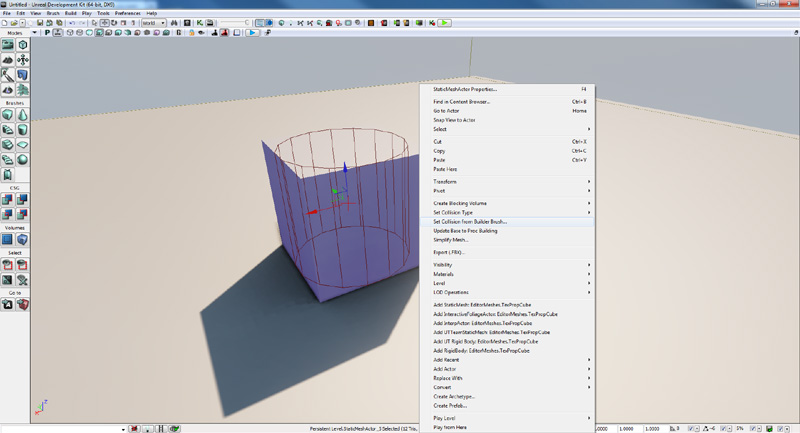
It is very important to note that this collision will be added to ALL instances of the static mesh you have selected. To see the effect of saving the brush as collision you will have to save the package that contains the static mesh.
K-DOP

K-DOP is a tool in the static mesh viewer for generating simple collision models. K-DOP is a type of bounding volume, which stands for K discrete oriented polytope (where k is the number of axis-aligned planes). Basically it takes k axis-aligned planes and pushes them as close to the mesh as it can. The resulting shape is used as a collision model. In the editor k can be:

6 Axis-aligned box.
10 Box with 4 edges beveled - you can choose X- Y- or Z-aligned edges.
18 Box with all edges beveled.
26 Box with all edges and corners beveled.
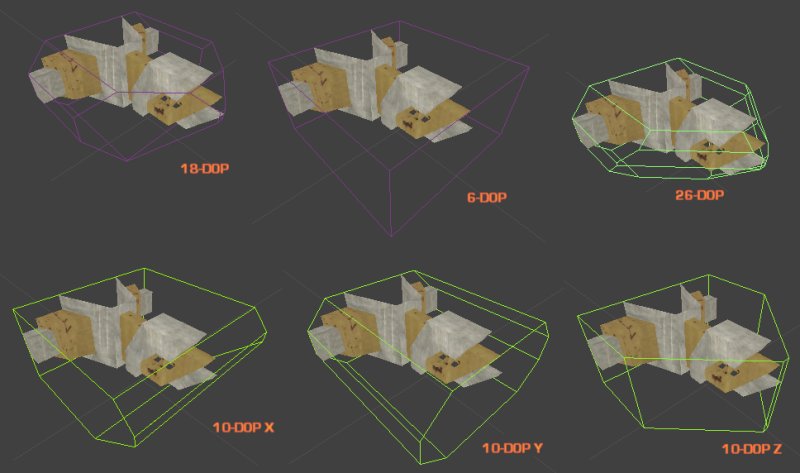
See below for an example. This util is quite handy for packages full of pipes, pillars and railings:

kdop_sizes.jpg

Create in a 3D Modeling Program

You can create collision models in a 3D Modeling Program (3D Studio Max or Maya). Simply create boxes, spheres or convex objects and place them around your mesh appropriately. These shapes will be converted to collision models in Unreal if they are named properly. The naming convention (which is case sensitive) is as follows:

UBX Box Primitive
USP Sphere Primitive
UCX Convex Mesh Primitive

  • Boxes are created with the Box objects type in MAX or with the Cube polygonal primitive in Maya. You can't move the vertices around or deform it in any way to make it something other than a rectangular prism, or else it won't work.
  • Spheres are created with the Sphere object type. The sphere does not need to have many segments (8 is a good number) at all because it is converted into a true sphere for collision. Like boxes, you shouldn't move the individual vertices around.
  • Convex objects can be any completely closed convex 3D shape. For example, a box can also be a convex object. The diagram below illustrates what is convex and what is not:

Convex.gif

Note that currently spheres are only used for rigid-body collision and Unreal's zero-extent traces (e.g. weapons), not non-zero extent traces (e.g. Player movement). Also, spheres and boxes do not work if the static mesh is non-uniformly scaled. In general you probably want to create UCX primitives.

Once your collision objects are set up you can export both the graphics and collision mesh in the same .ASE file. When you import the .ASE file into UnrealEd it should find the collision mesh, remove it from the graphic, and turn it into the collision model.

Note: In the case of an object whose collision is defined by multiple convex hulls, results are best when the hulls do not intersect with one another. For example, if the collision for a lollipop were defined by two convex hulls, one for the candy and one for the stick, a gap should be left between the two as in the following illustration:

lollipop.jpg

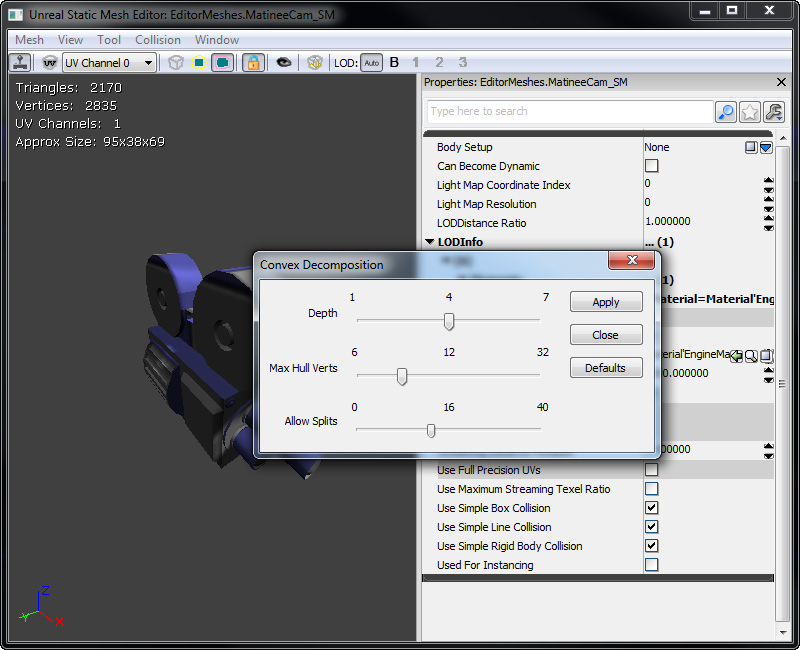
Breaking up a non-convex mesh into convex primitives is a complex operation, and can give unpredictable results. Another approach is to break the collision model into convex pieces yourself in MAX or Maya. To do this, you use the bOneConvexPerUCXObject option on the StaticMesh importer. With this option checked, each UCX_ object in the file will be turned into exactly one primitive. If the object is non-convex, it will just have a convex hull wrapped around it to make it convex. This gives you a lot of control, and is a good idea for complex meshes.

Physics Collision For Rigid Bodies

The way that the Novodex PhysX rigid-body physics engine works is to generate contact points each frame for where things are touching. This is a more complicated process than performing a line check, so it is important to keep the geometry that real physics objects (such as a ragdolls) collide with as simple as possible, both for speed and behavior. For example, a lot of small triangles can lead to physics objects getting snagged, and will take a long time to process.

First, for an Actor to block physics Actors, it must have the bBlockRigidBody flag set to true. This is the default for static meshes and blocking volumes.

If UseSimpleRigidBodyCollision is true (see Collision Models above for more details), the engine will take the collision model and turn it into a set of convex hull primitives for contact generation. If you choose View Collision from the View menu in the Static Mesh Viewer?, it will give you an overall primitive count. You ideally want to keep that count below 10, certainly under 100.

Rigid-body actors collide against BSP and terrain per-triangle. For this reason, you should make sure your BSP and terrain do not have very small triangles in them. For small details, use a blocking volume/collision model.

Filtering Rigid Body Collision

You can control which rigid body objects collide by using the RBChannel and RBCollidesWithChannel options within the Component.

  • RBChannel This indicates what type of object this is considered for collision.
  • RBCollidesWithChannel This indicates the types of object that should generate a collision with this one.

Things like BSP, Terrain and Static Meshes are in the Default channel, by default. So if you have a physics object that you want to collide with that, you need to make sure that Default is checked in the RBCollidesWithChannel. Normally static objects in a level will not have any flags set in RBCollidesWithChannel, so that dynamic objects 'choose' what they with to collide against.

There is a special channel RBCC_Nothing, which indicates nothing should by default collide with this object. However, you can still set entries in RBCollidesWithChannel. For example, if you want an object in the level to only collide with vehicles, you would set it to belong to the RBCC_Nothing channel, and then turn on the Vehicles flag in RBCollidesWithChannel.

Examples

Here are some examples of how to set various collision flags for common collision scenarios. The goal is to have the right combination of collision checks and flags for physics simulation.

Player Movement and Weapon Fire

For proper player movement, specifically, having a collision cylinder to be used for Pawn movement and collision with other Pawns, while using the kinematic bones for accurate collision detection (e.g. when tracing rays for shots), consider the following:

  • Unreal physics (eg. PHYS_Walking) will sweep out the axis-aligned bounding box of just the CollisionComponent. Using a SkeletalMeshComponent as the CollisionComponent when using PHYS_Walking is a bad idea, because it changes shape a lot as the character animates.
  • A line check will check against all PrimitiveComponents attached to an Actor, if they have CollideActors and BlockZeroExtent set set to TRUE.
  • You do not need to have a PhysicsAssetInstance and kinematic bones to do line checks against bones. Simply having a PhysicsAsset assigned and having CollideActors and BlockZeroExtent set to TRUE should result in you getting line check results (assuming the component is attached).
  • RBChannel/RBCollideWithChannel only affects physics engine collision. If your player is using PHYS_Walking, it will have no effect.

Basically, your Pawn wants a CylinderComponent and a SkeletalMeshComponent. The CollisionComponent pointer should be assigned to the CylinderComponent, and the SkeletalMeshComponent should set CollideActors and BlockZeroExtent to TRUE, and your CylinderComponent should probably set BlockZeroExtent to FALSE, to stop it from interfering with weapon traces.

Reviewing Collision In-Game

There are several console commands you can use in-game for reviewing the collision setup. Here are a few. Typing them toggles them on and off.

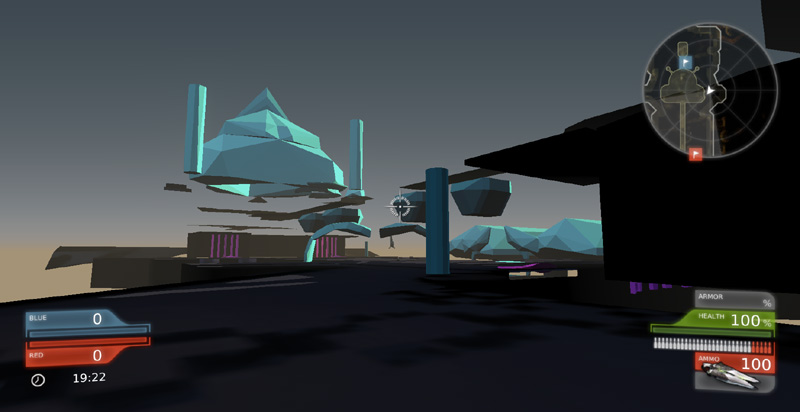
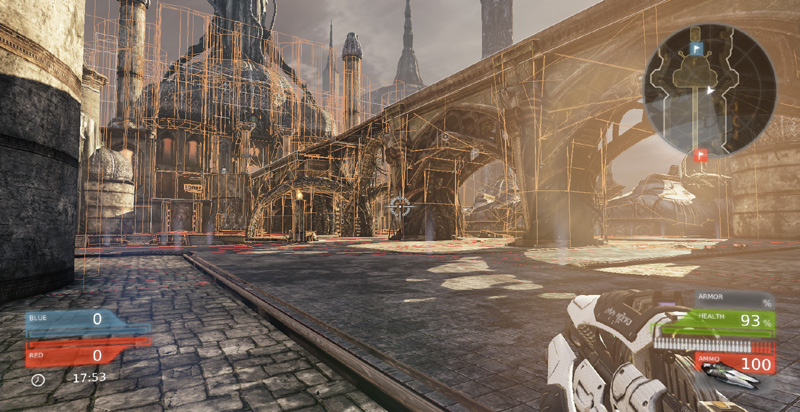
  • show collision This will draw all collision models and blocking volumes in use in the level.
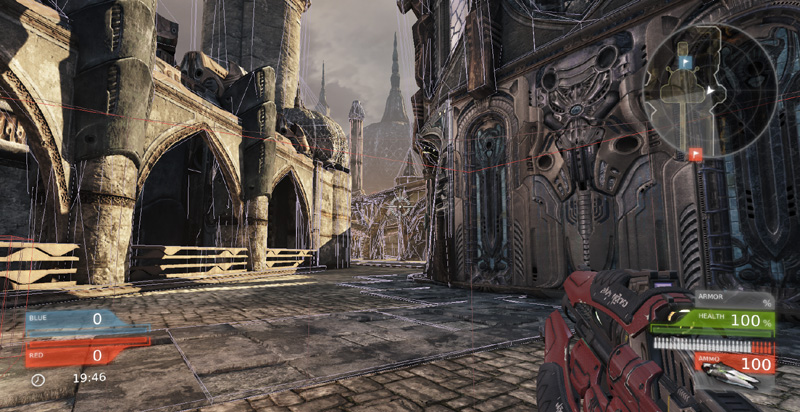
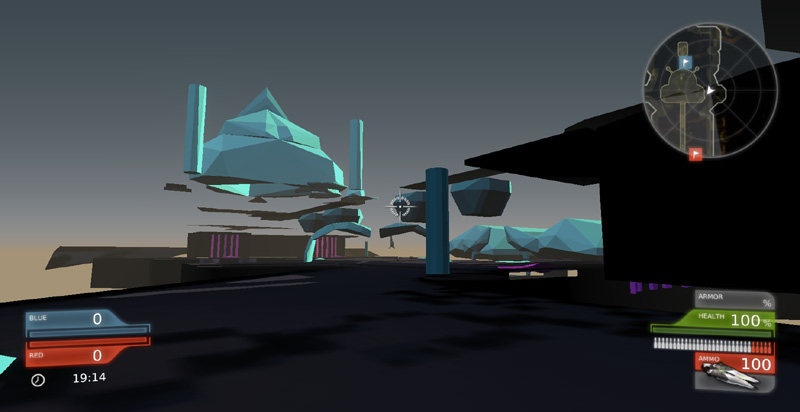
  • show missingcollision Typically used during level optimization, this applies a bright shader to all static meshes that have no collision model.
  • nxvis collision This shows you the Novodex collision information for the level, so you can see what rigid-bodies are colliding with.
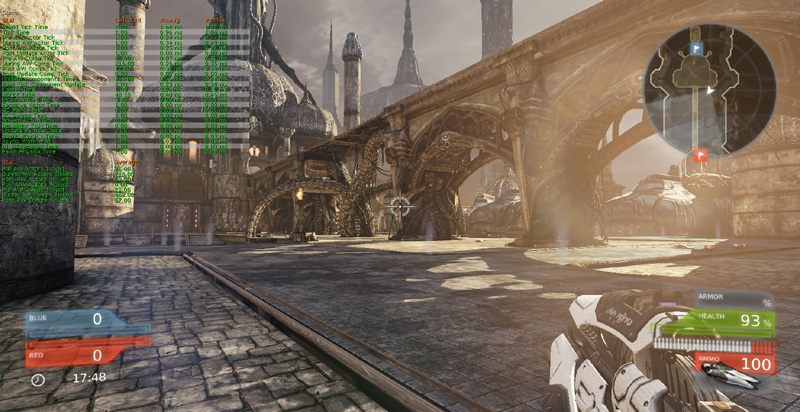
  • stat game This shows you various useful stats on how long different types of collision are taking.