UDN
Search public documentation:
MainEditorToolbar
日本語訳
中国翻译
한국어
Interested in the Unreal Engine?
Visit the Unreal Technology site.
Looking for jobs and company info?
Check out the Epic games site.
Questions about support via UDN?
Contact the UDN Staff
中国翻译
한국어
Interested in the Unreal Engine?
Visit the Unreal Technology site.
Looking for jobs and company info?
Check out the Epic games site.
Questions about support via UDN?
Contact the UDN Staff
Main Editor Toolbar
Overview
Maps

Create a New Level
 Creates a new map, first prompting to save any open levels that are unsaved or that have changed since last save.
Open an Existing Level File
 Opens an existing map, first prompting to save any open levels that are currently unsaved.
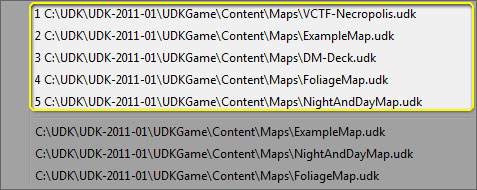
A list of the most recently opened maps is available by clicking on the adjacent
Opens an existing map, first prompting to save any open levels that are currently unsaved.
A list of the most recently opened maps is available by clicking on the adjacent  button.
Toggle Map File As Favorite
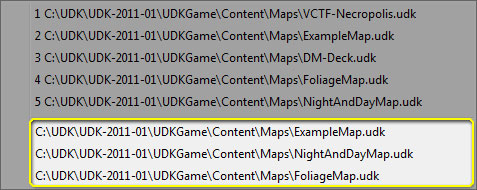
 Toggles whether the current map is saved as a favorite. A list of favorite maps is available by clicking on the adjacent button.
Save Current Level
 Saves the 'current level' (as specified in the Level Browser). Only saves if the current level is unsaved or has changed since last save. If source control is enabled and the current level needs to be checked out from source control to be saved, you will be prompted to check out the package.
Save All Levels
 Saves all levels are unsaved or that have changed since last save. Only saves levels in packages that are writable on disk. Does not prompt for checkout from source control.
Save All Writable Packages
 Saves all packages which are writable and have been saved previously to disk. This will not prompt to checkout packages under source control and will not save new packages which do not already exist on disk.
Undo/Redo

 Note: You cannot undo/redo after certain actions (e.g. opening a map, building a level, etc).
Undo the Last Action
 Undo the last action in the transaction stack.
Redo the Previously Undone Action
 Redo the last undone action in the transaction stack.
Widget

Selection Mode
 Toggles whether objects can be transformed. When enabled, objects cannot be translated, rotated, or scaled.
Use translation widget.
 In translation mode, the widget will translate (move) the selected actors.
Use rotation widget
 Sets the widget to rotation mode, in which selected actors will rotate about the pivot point.
Use uniform scaling widget
 Sets the widget to scaling mode, in which selected actors will be scaled by a uniform amount in the X, Y and Z directions.
Use non-uniform scaling widget
 Sets the widget to non-uniform scaling mode. In this mode, dragging the individual widget handles will scale the selected actors along specific directions. Note that activating the non-uniform scaling widget will automatically convert the widget's reference coordinate system to 'Local'.
Reference coordinate system
 The reference coordinate system (RCS) specifies the frame of reference that widget operations will be applied. For example, when an actor has been rotated and the RCS is set to 'Local', translating the actor via the translation widget will result in movement along the actor's rotated directions rather than the global X/Y/Z directions.
Search
Find Actors
 Opens the 'Search For Actors' dialog, which allows the user to find specific actors in levels that are currently visible in the Level Browser.
Browser
Content Browser
 Opens the Content Browser, which allows the user to search for assets.
Editors

Kismet Editor
 Opens the Kismet editor, which allows the user to edit Kismet sequences on the current level.
Matinee Editor
 Allows the user to open any matinee sequences on the current level.
Viewport Camera
Distance to far clipping plane
 Controls the far clipping plane distance in the perspective level viewport. The clipping plane moves closer to the camera as the slider moves left. Often an editor performance benefit when rendering perspective views of large, complex levels.
Selection

Allow Translucent Selection
 Allows objects with translucent materials to be selected
Encompass to Select
 When enabled, and object must be entirely encompassed by the selection box to be selected.
Misc
Toggle fullscreen
 Toggles editor 'Fullscreen' mode. If enabled, UnrealEd maximizes and its titlebar disappears.
Toggle Real Time Audio
 Toggles Real Time Audio in the perspective viewport. Right click to adjust volume.
Building

Build Geometry for Visible Levels
 Builds geometry for the 'Current Level', as specified in the Level Browser.
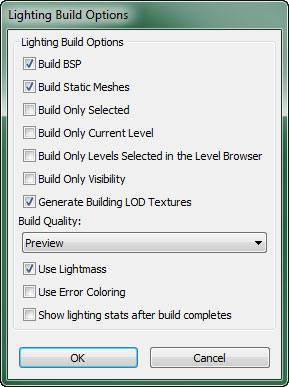
Build Lighting
 Brings up the 'Lighting Build Options' dialog, pictured below
Build Paths
 Builds paths for all visible levels. Note that this may result in invalid information in levels containing pathing that are not visible at build time.
Build Cover Nodes
Builds cover nodes all visible levels. Note that this may result in invalid information in levels containing cover nodes that are not visible at build time.
Build All
 Builds geometry, lighting, pathing and cover nodes for all visible levels. Note: This may result in invalid information in levels that are not visible at build time.
Build All and Submit to Source Control
 Builds geometry, lighting, pathing and cover nodes for all visible levels and commit the built levels to source control. Note: This may result in invalid information in levels that are not visible at build time.
Lighting Quality Setting

| Action | Description |
|---|---|
| Left Mouse click | Cycle through quality setting options. |
| Right Mouse click | Directly set the quality for the lighting build. |
Launch buttons
| Action | Description |
|---|---|
| Left Mouse click | Launch on the specified platform. |
| CTRL + Left Mouse click | Launch in spectator mode. |
| Right Mouse click | Edit launch URL. |
Play on PS3
Launches the game on the PlayStation 3 dev kit.Play on PC
 Launches the game on the PC.
Play on Xenon
Launches the game on the XBox360 dev kit.Play in editor (PIE)
 Launches a 'Play in editor' session on the PC.
