UDN
Search public documentation

SoundCueEditorUserGuide
Licensees can log in.

Red links require licensee log in.

Interested in the Unreal engine?
Check out the licensing page.

Questions about UDN itself?
Contact the UDN Staff

Unreal Sound Cue Editor User Guide

Document Summary: This document gives you an overview of using the Unreal Sound Cue Editor, from importing sounds to creating SoundCues.

Document Changelog: Created by Mike Larson. Maintained by Richard Nalezynski.

Introduction

The Sound Cue Editor is the tool used to work with audio in the Unreal Engine.

Using the Sound Cue Editor

Packages

All audio files and SoundCues are imported and saved into .upk packages, the Generic Browsers Import function is used to create .upk packages.

Opening the Sound Cue Editor

01UE3Import.jpg

  1. In the Generic Browser use pull down tab to select Sounds, this displays the currently loaded package.
  2. To create a new package import audio files by selecting Import from the File menu.
  3. The Import Audio dialog opens; locate audio files for importing and select Open to add files.
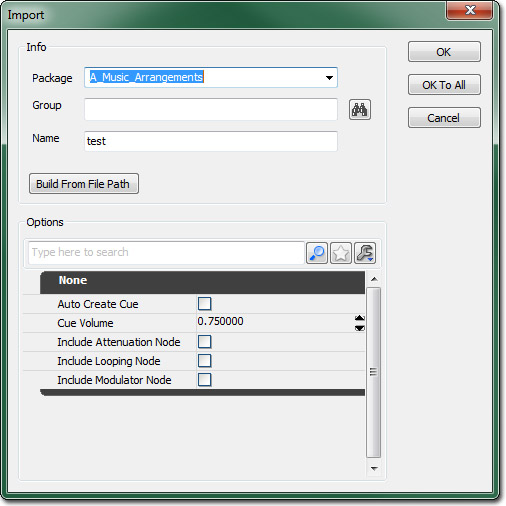
  4. The Import Property dialog opens. Enter the following information:
    • Package - name of package.
    • Group - name of group, groups are used for organization and batch control.
    • Name - name of the audio file.
    • AutoCreateCue - if checked import will auto create a SoundCue per audio file,.
    • CreateLocalizedCue - if checked import will auto create a SoundCue per file with Attenuation Nodes.
    • Volume - this sets the Speaker Nodes Cue volume.
  5. Select OK to adjust properties on individual files upon import; or select OK to All to apply current properties to all imported SoundCues.

  6. The newly created package will appear in the Generic Browser under Sound\Packages. Highlight the pack and select Save from the File menu to save to disk.
  7. Double clicking on the package in the Generic Browser lists all audio files and SoundCues in the Object browser. Double clicking the files + Cues in the Object browser will play the audio, right clicking on the Cues allows access to the SoundCue Editor.

Sound Cue Editor Overview

Sound Cue Editor Layout

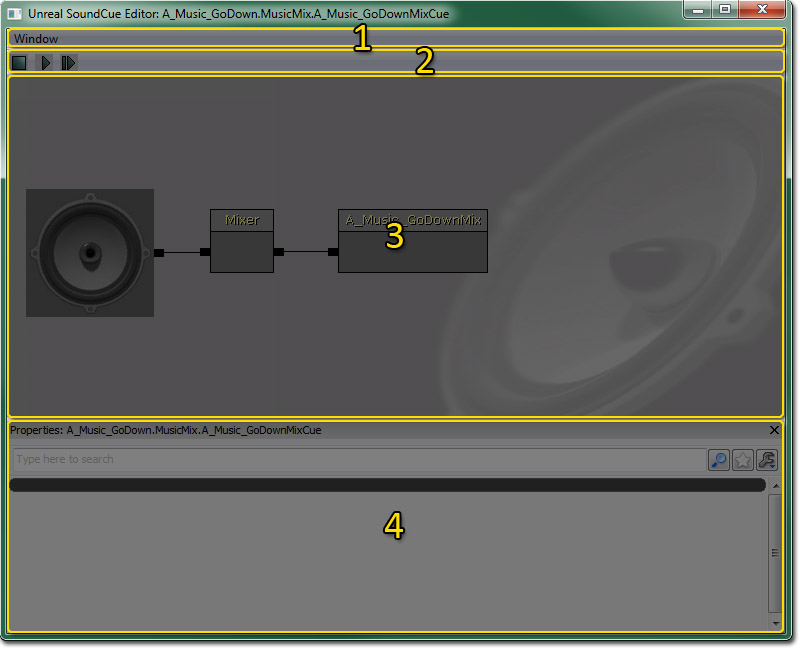
The behavior of audio playback in UE3 is defined within SoundCues. The dedicated SoundCue Editor can be found in the Actor Browser by right clicking on any SoundCue and selecting SoundCue Editor.

02UE3SCE.jpg

1 Menu Bar and Tool Bar.
2 Audio Node Graph.
3 Properties Pane.

Menu Bar

Window

Properties Shows the Properties Pane.

Tool Bar

Audio Node Graph

This interface displays the audio signal path from right to left with interconnected block Nodes representing audio control modules and audio files. Virtual patch cables are used to complete the signal patch by connecting the modules in any order or combination. The Speaker icon represents the final output of audio as heard in-game and is always positioned furthest left in signal path. The source audio files (Sound Node Wave) are always positioned furthest right in the signal path. To preview playback use the play buttons located at the top of editor window, the single arrow plays the source Sound Node Wave and the double arrow plays the SoundCues final output.

The various audio Nodes can be added by right clicking anywhere in the SoundCue Editors window and selecting desired Node.

SoundCue The arrangement created in the SoundCue Editor is saved as a SoundCue.

Sound Node Wave A Sound Node Wave is the block representation of an imported audio file in the SoundCue editor. When the desired audio file is selected in the Generic Brower's Object window, it can be added to a SoundCue by right clicking anywhere in the SoundCue Editor. Although Sound Node Wave volume and pitch controls exist, they aren't editable in the SoundCue Editor because parameter changes affect other Cues utilizing the same Sound Node Waves. But they are available upon import and in the Group batching system. All Sound Nodes default to Volume 0.75 and Pitch 1.00

Speaker Node The Speaker icon in the SoundCue Editor is the Speaker Node. Clicking on it exposes the Cue Volume + Pitch settings which are used to manage relative Cue volumes. This affects the output of all audio contained within the Cue, if multiple Sound Node Waves are utilized with Mixer or Random Nodes, independent volume and pitch control can be accomplished per layer by adding Modulator Nodes.

Properties Pane

Controls

Mouse Controls

Keyboard Controls

Hot Keys

Working with Sound Cues

Attenuation Node

The Attenuation Node is used to control spatialization, attenuation, and radii properties

03UE3Attenuation.jpg

Attenuation fade out over distance, check box toggles attenuation on\off
Spatialize localized in 3D space, check box toggles spatialization on\off
Distance Model the only currently selectable attenuation curve is Linear
MinRadius sound plays at 100% volume between the origin and MinR, a straight linear fade is created by setting the MinR to 0.0
MaxRadius sound fades from 100% to 0% between MinR and MaxR, the outer radius where sound reaches silence is the MaxR

The main MinR and MaxR controls each feature a subset of Min and Max settings for randomization purposes. Normal playback with consistently behaving radii requires setting the sub Min and Max settings to the same value. If those subsets are set to different values it'll randomly pick a position between those values each time the Cue is triggered.

Stereo files play evenly on the Left and Right channels and attenuate allowing volume fades between the MinR and MaxR values, but they are not spatialized. Cues that do not contain the Attenuation Node are not localized and play consistently at the Cue volume setting.

Mixer Node

The Mixer Node is used to trigger multiple Sound Node Waves simultaneously. Inputs are added for each audio file by right clicking on the Mixer Node and selecting Add Input. Sound Nodes may be connected directly to the Mixer Node inputs but you can also add nodes between them for independent control per layer.

04UE3Mixer.JPG

Looping Node

The Looping Node is used to set a Sound Node Wave to looping. The only adjustable parameter Loop Count Max and Min default high to provide virtually endless playback but it can also be set to a specific number of loops if desired. You can loop multiple audio files independently when used in conjunction with the Mixer Node.

05UE3Looping1.jpg

Modulator Node

The Modulator Node is used to add random Volume and Pitch modulation. Each has a Max and Min value to determine the range of randomization, when the Cue is triggered it randomly selects a value within that range. You can use the Modulator Node to adjust Volume + Pitch consistently by setting the Min and Max to the same values. It can also be used to adjust relative volumes of multiple Sound Node Waves contained within a Cue. If the Modulator Node is used in conjunction with the Looping Node it'll randomly select upon Cue retrigger not per loop revolution.

06UE3Modulator.jpg

Continuous Modulator Node

The Continuous Modulator Node allows game play parameters to control volume and pitch modulation in real time. A typical example is using the velocity of a vehicle to correspond to the pitch of an engine sound. This modulator needs to be hooked up in code for desired purposes and doesn't function stand alone within the SoundCue Editor.

07UE3ConMod.jpg

Random Node

The Random Node is used to randomly trigger a Sound Node Wave from within a group of possible Sound Node Waves. Weight controls the probability a Sound Node Wave will be triggered relative to other Sound Node Waves in the Actor. The check box RandomWithoutReplacement will exhaust the entire list of possible Sound Nodes before repetition. Inputs are added for each audio file by right clicking on the Random Node and selecting Add Input. Sound Node Waves may be connected directly to the Random Node but you can also add nodes between them for additional control.

08UE3Random.jpg

Oscillator Node

The Oscillator Node is used to add continuous pitch and volume oscillation over time. This is mostly useful on looping sounds to create a greater degree of ongoing movement.

09UE3Oscillator.jpg


Sound Cues Reference


Examples

Below are examples of more complex SoundCue arrangements:

10UE3Complex1.jpg

This plays four audio files simultaneously upon trigger with random variation upon retrigger.

11UE3Complex2.jpg

This plays one audio file upon trigger with random variations upon retrigger.

12UE3Complex3.jpg

This mixes two sets of randomly triggered audio files